Shopify
The following document guides you through accepting paymennt.com payments through Shopify.
info
This guide assumes that you already have a paid Shopify account.
Create a custom app#
In your Shopify, go to
Apps>Develop apps for your store(at the bottom of the page) and clickCreate an app. If custom apps are disabled, enable custom apps development.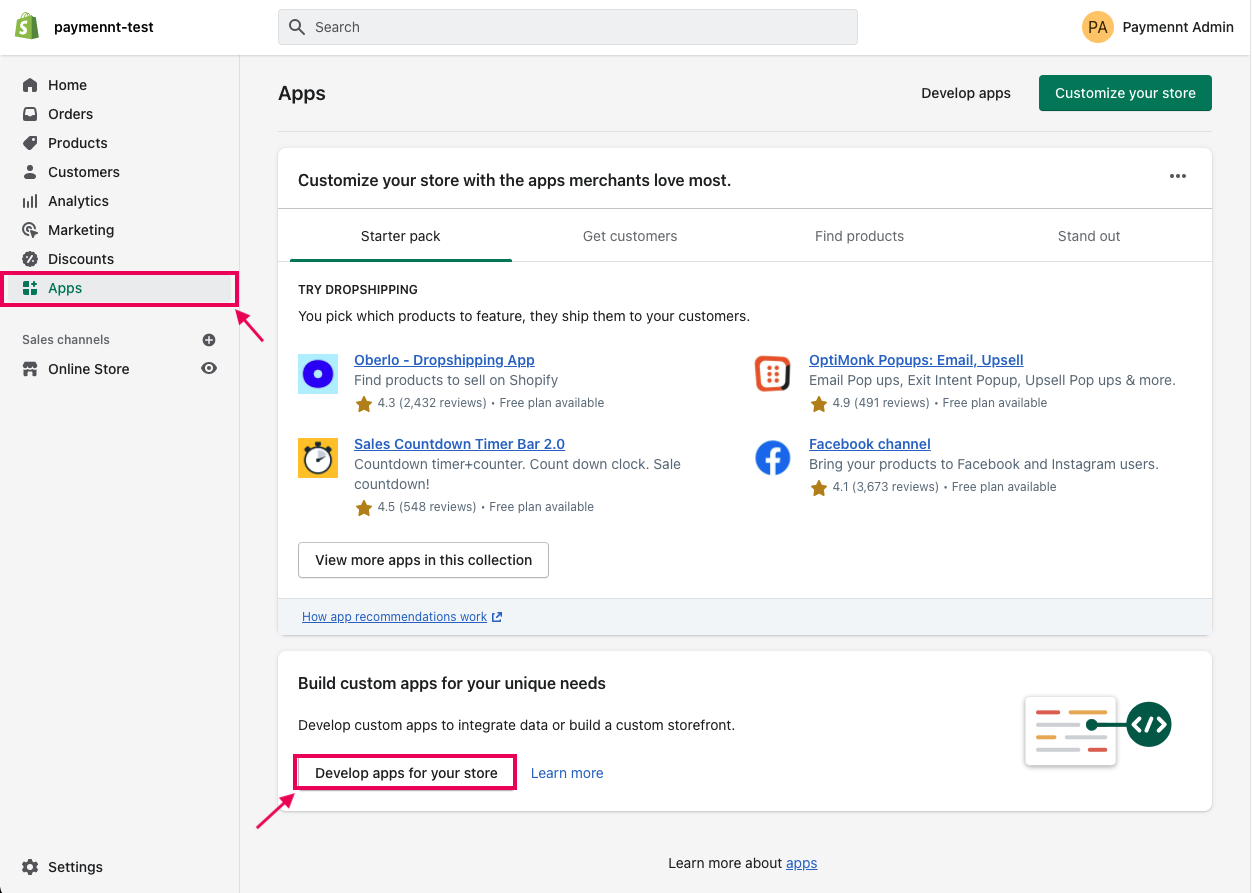
Fill in the app name and and press on
Create app.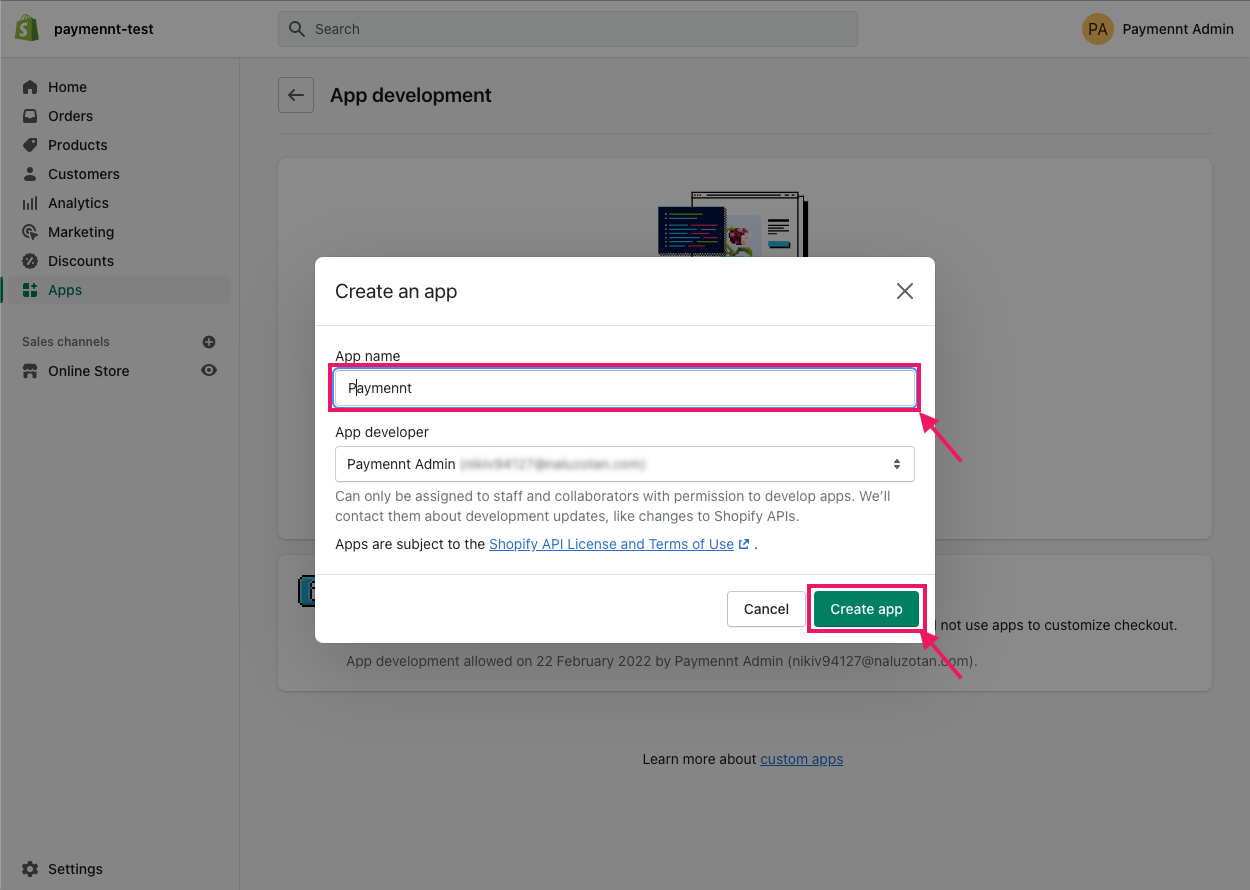
From
Configurationtab, grantRead and writepermission forOrdersand click onSaveat the top right corner then clickCreate appin the confirmation prompt.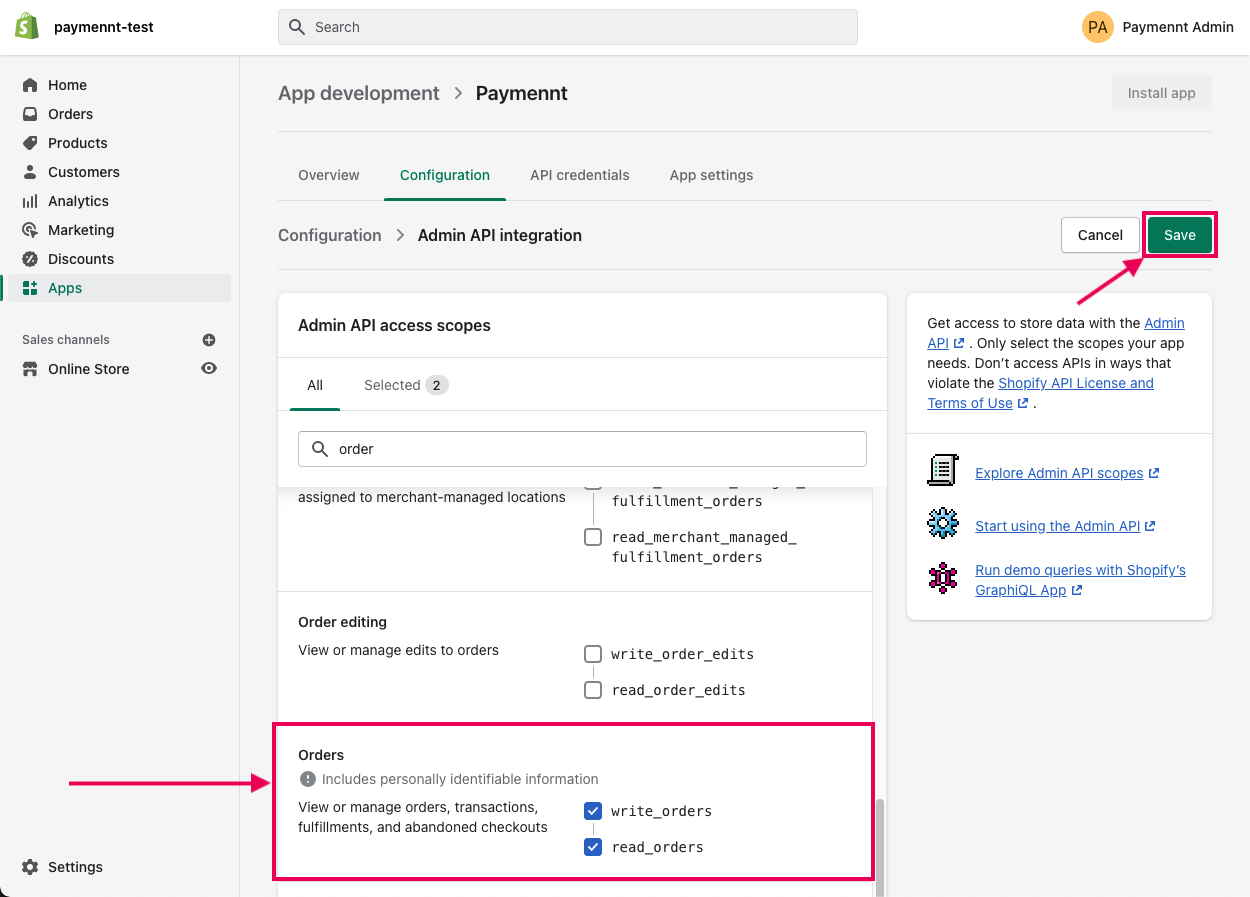
Navigate to
API credentialstab and press onInstall app.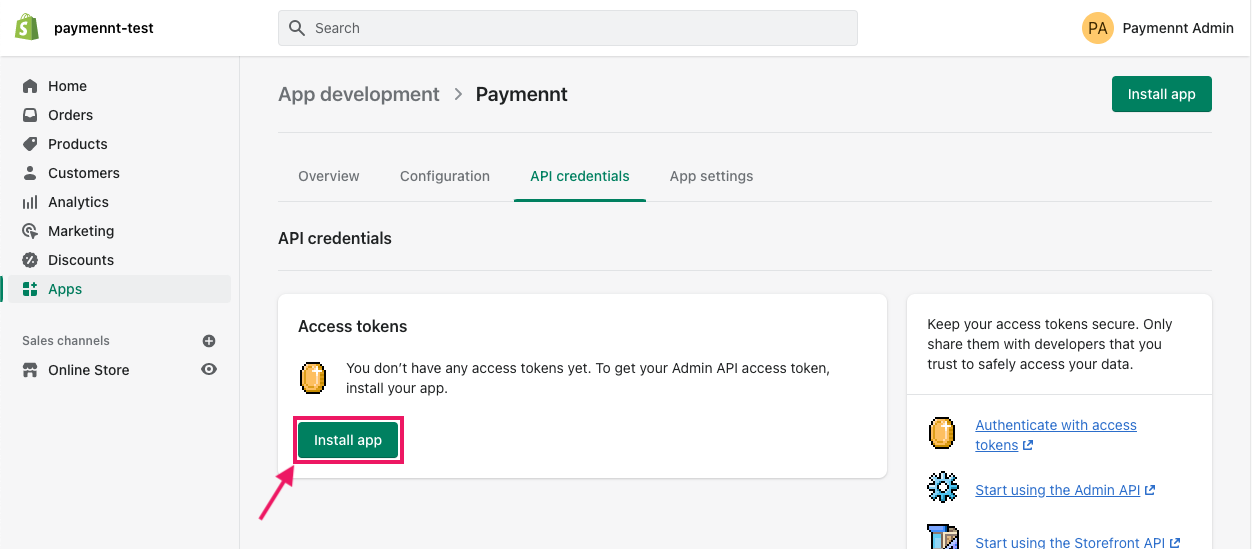
Copy the
Admin API access tokenfrom the Paymennt application as shown below. We will use this in the next section.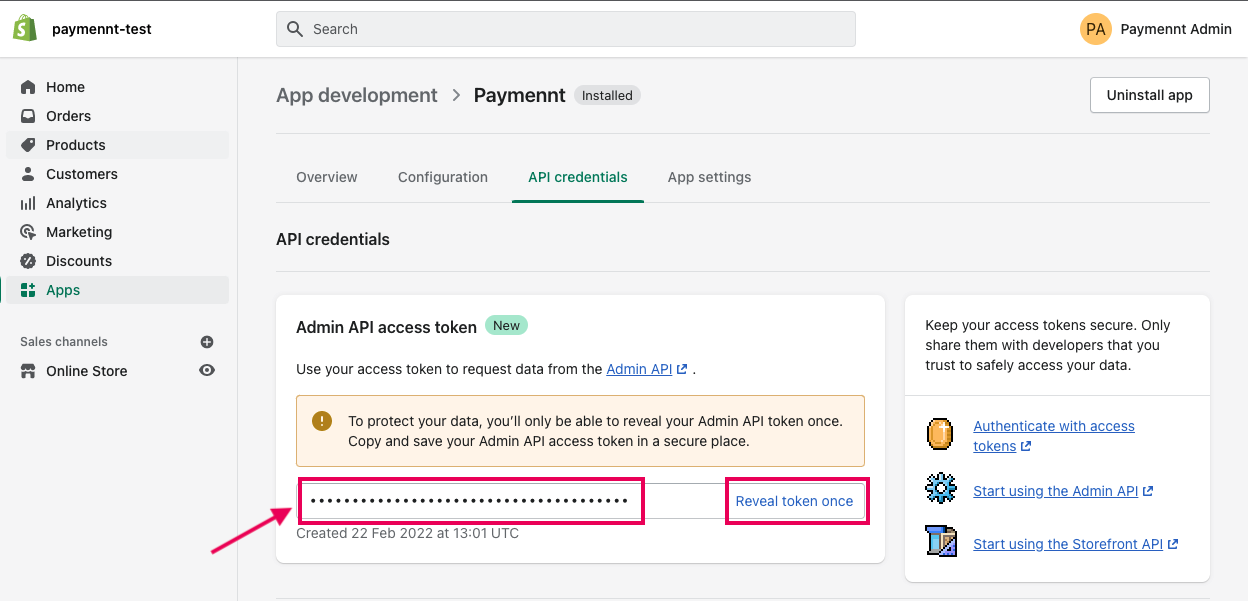
Configure paymennt.com#
Paymennt.com Web Console#
To complete this integration, you must first login to the paymennt.com Web Console
Shopify Configuration#
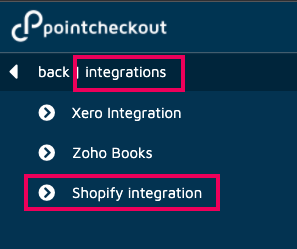
From the side menu, Select "Integrations" -> "Shopify Integration" as shown in the image below
Connecting your Shopify account#
- Click on "connect to Shopify"
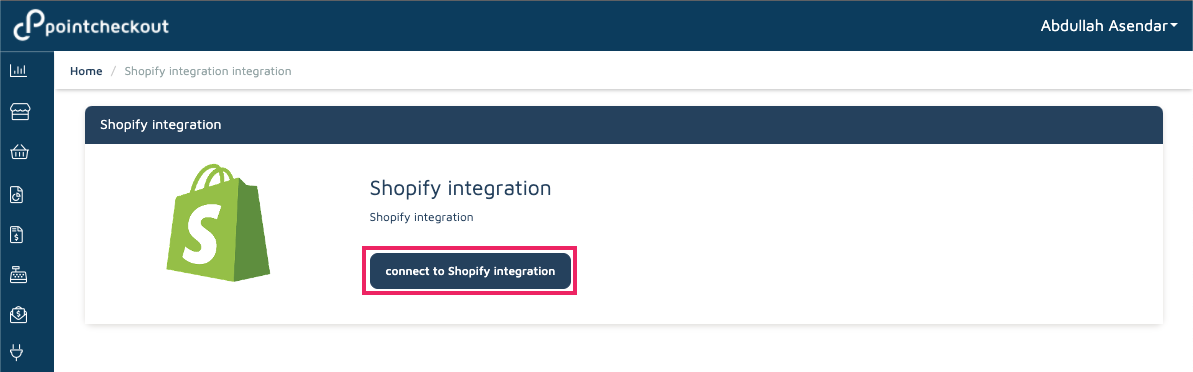
- Fill the form with then click on "Connect":
- endpoint: your shop's domain
- token: the
Admin API access tokencopied from Step 5 in creating the custom app
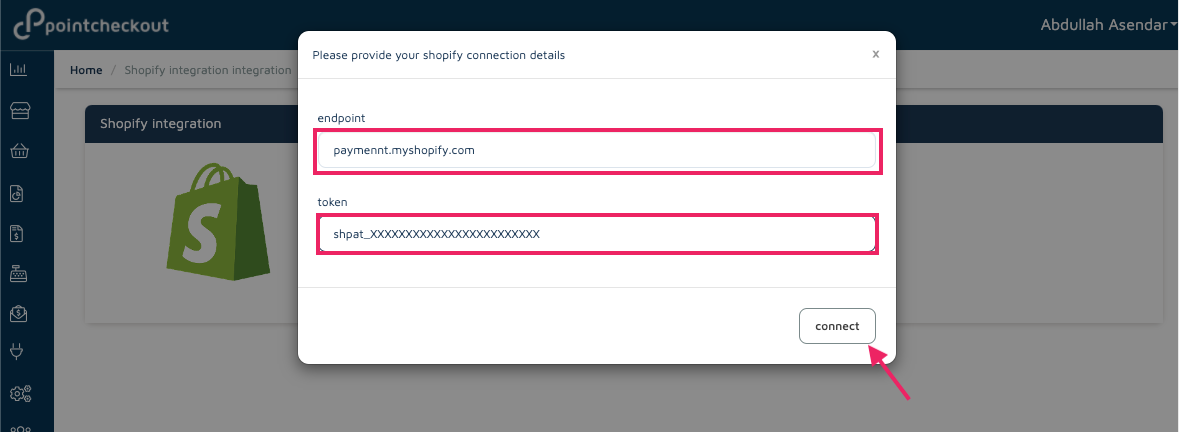
- Copy the HTML code shown on the confirmation page. We will use this in the next steps.
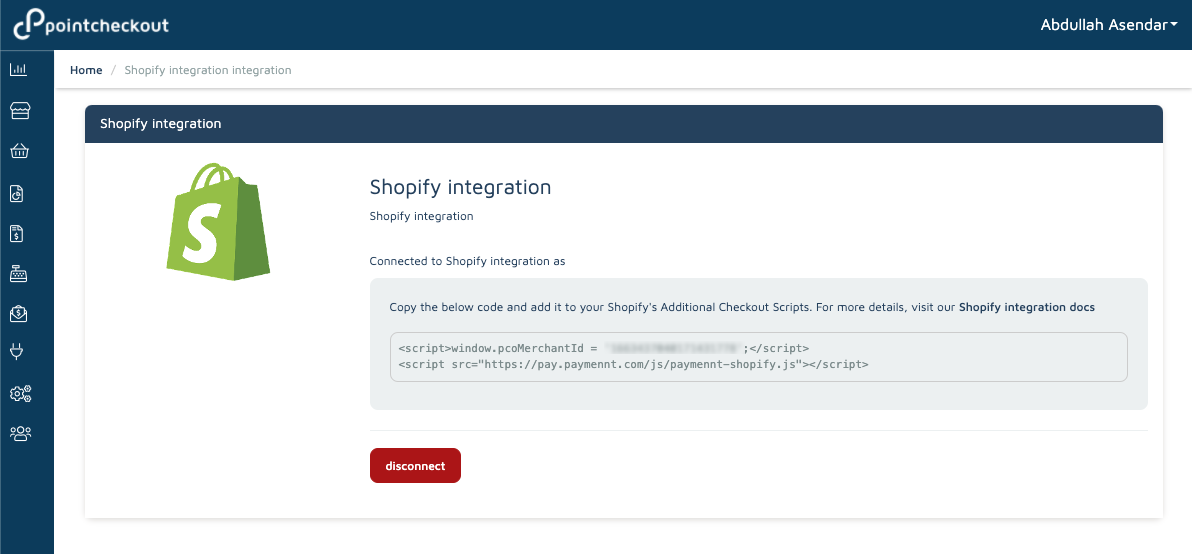
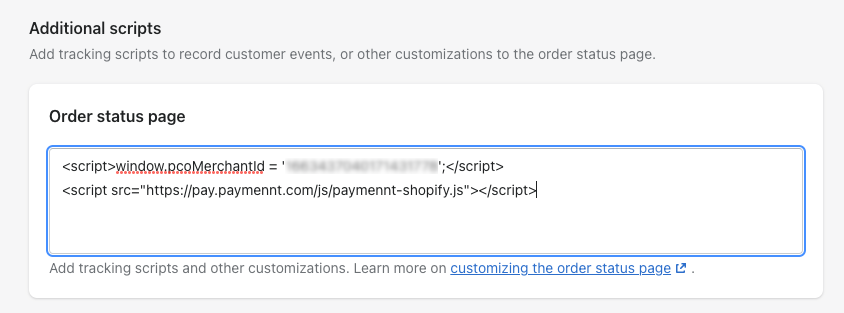
Shopify Additional Scripts#
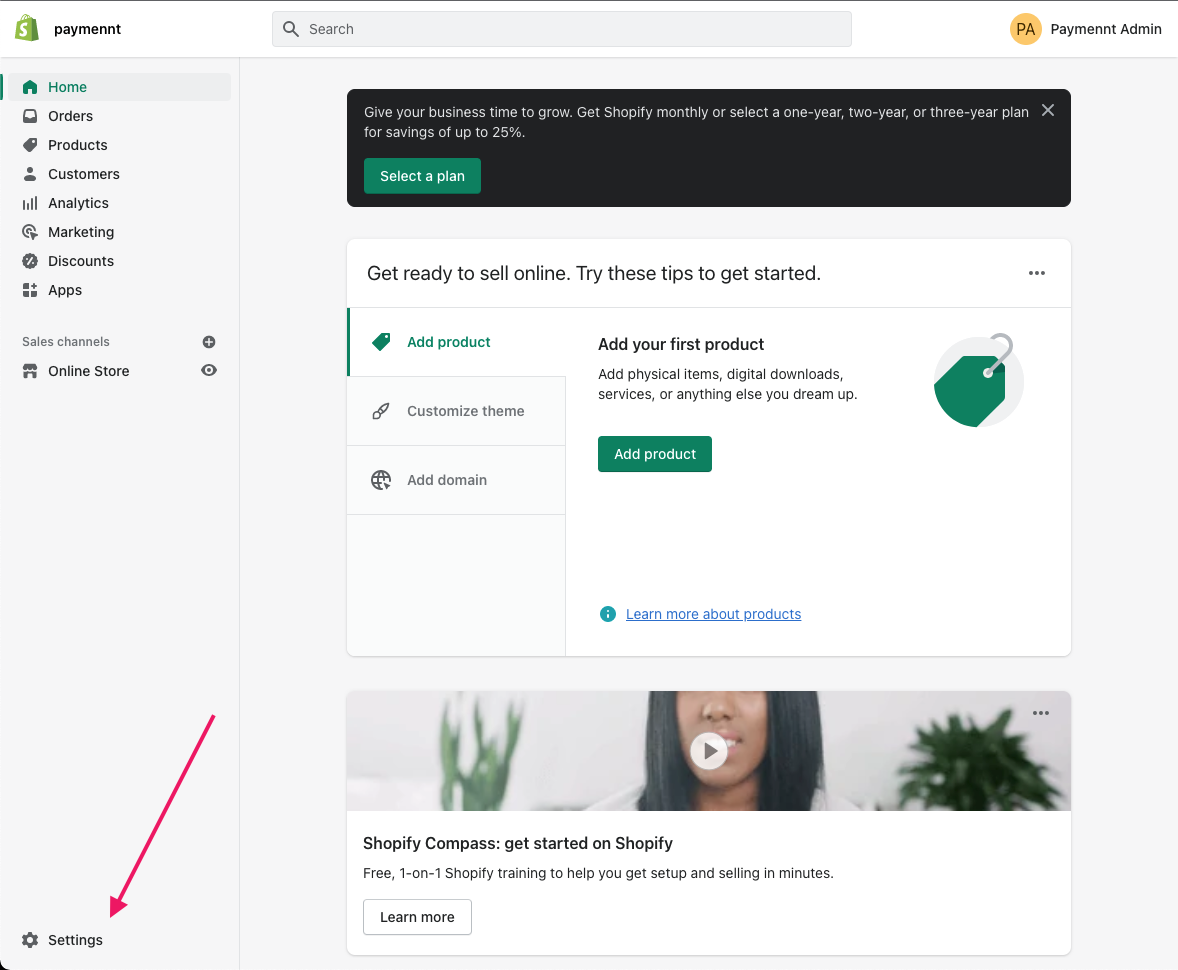
- Go back to Shopify. Select
Settingsthen click onCheckout
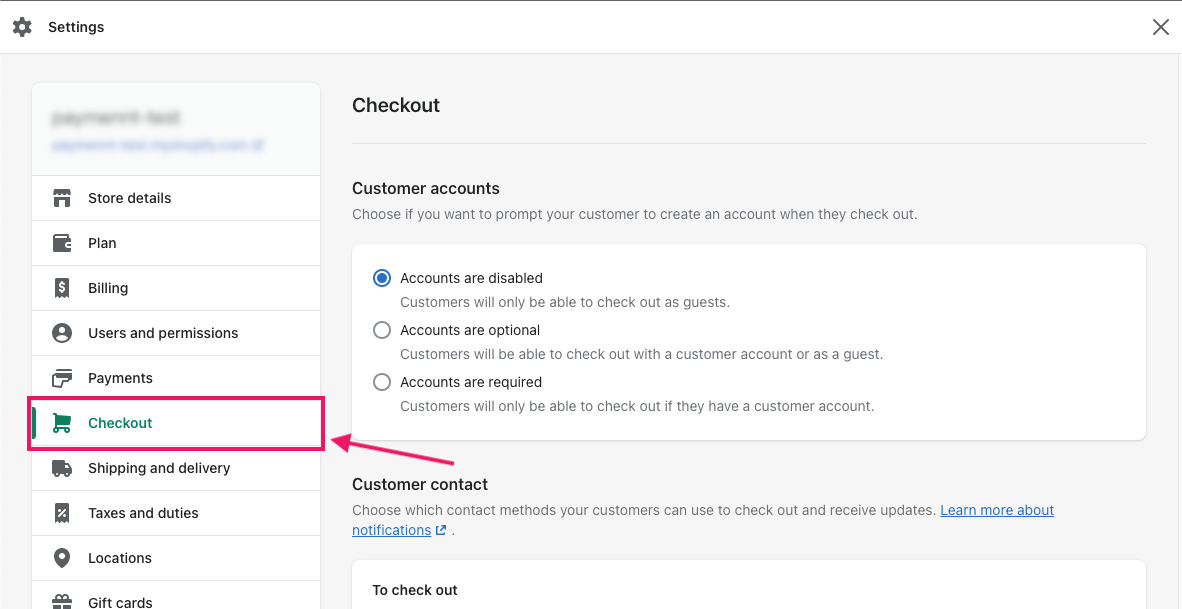
- Scroll down to the
Additional Scriptssection and paste the code from Step 3 above into theOrder status pagetext box. Click Save when done.
Manual Payment method#
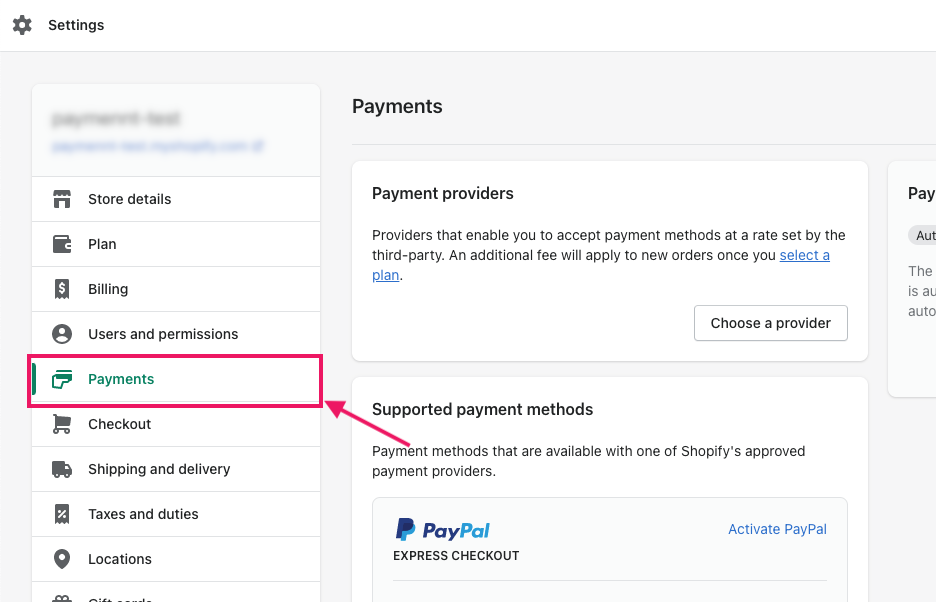
- Go back to Shopify. Select
Settingsthen click onPayments
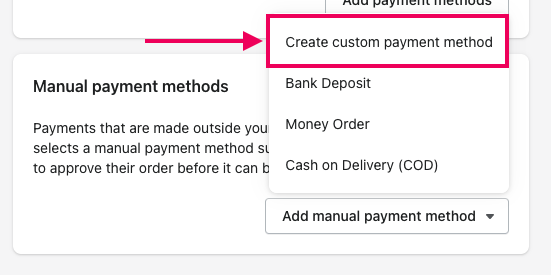
- Scroll down to the
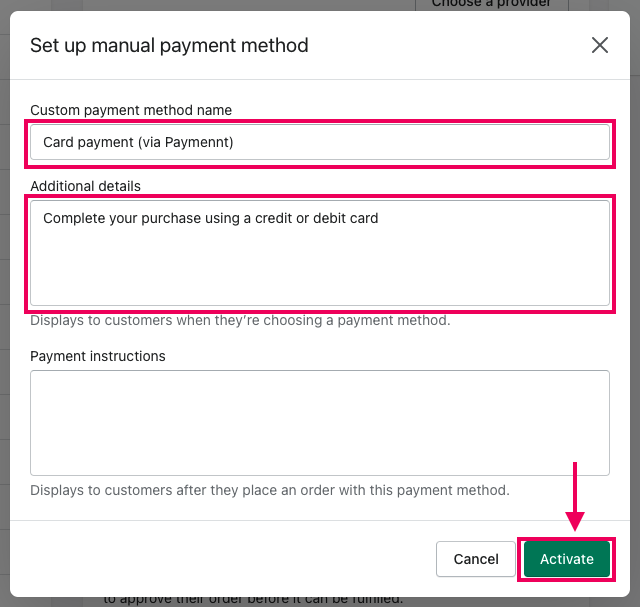
Manual payment methods. Click onAdd manual payment methodand then selectCreate custom payment method.
- Fill in the required details to setup the manual payment method:
- Custom payment method name:
Card payment (via Paymennt) - Additional details:
Complete your purchase using a credit or debit card
- Custom payment method name:
- Click
Activatewhen done